Payment & check-in status
Two columns tell you most of what you need at a glance: where each participant stands on payment and whether they've arrived.
Payment status
The payment column shows each participant's state and amount:
- Free — no payment required.
- Paid — paid in full.
- Pending — payment is awaited or only partly complete.
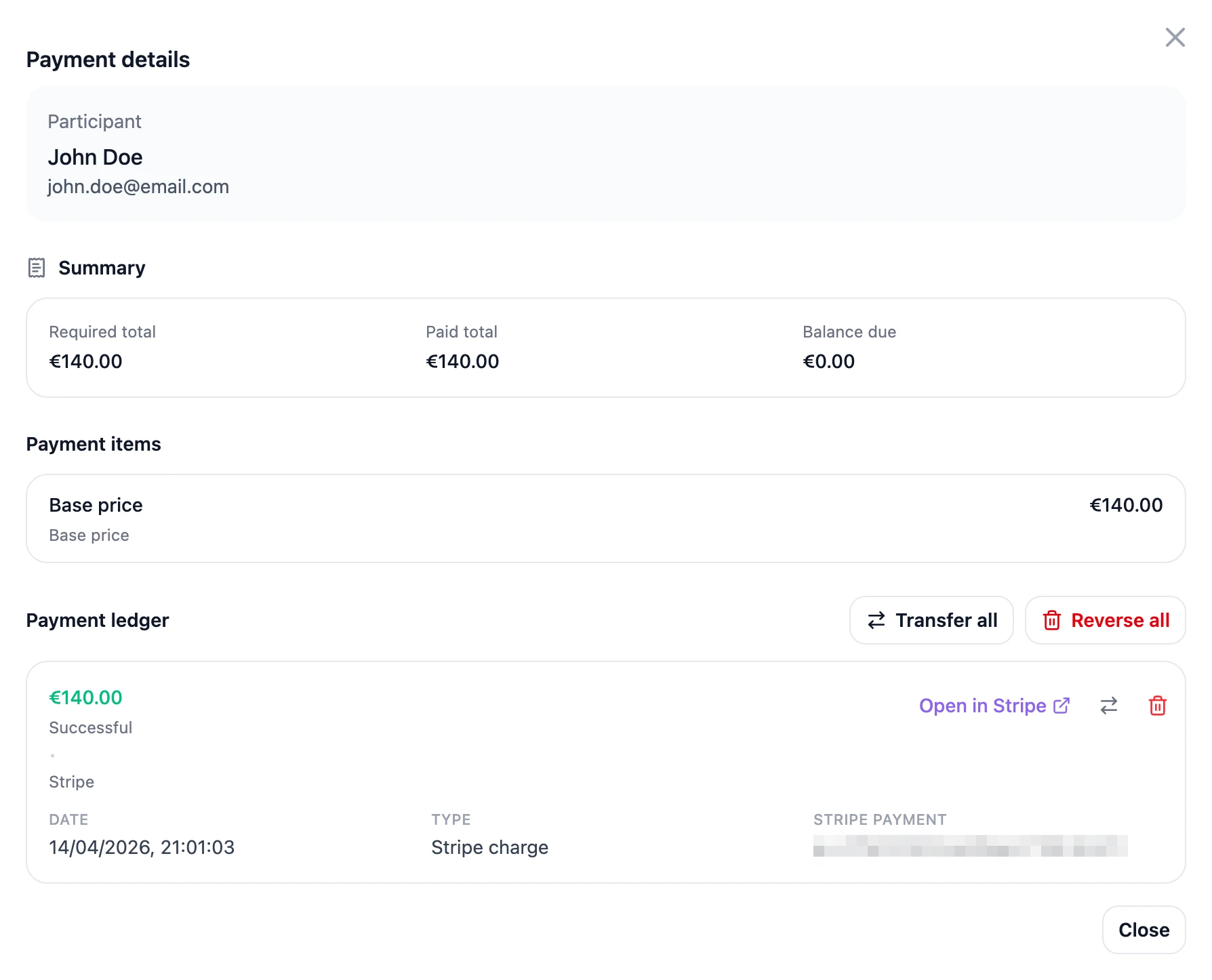
From the payment actions you can:
- Record a manual payment — mark someone as paid when they paid you outside the system (for example, a bank transfer or cash).
- Transfer a payment — move a payment to a different registration when needed. Might be helpful if a person likes to transfer their ticket, due to unavailability. The receiving registration keeps a "Transferred from" record in its ledger — the original payer, the original date and method, and the Stripe reference — so you can still trace where the money came from even if the original registration is later deleted. Chained transfers keep the full history.
- Open in Stripe – use this button to open a specific transaction in Stripe, to verify details or refund it.
- Reverse a payment – use this button when you want to register a refund which has been processed on Stripe or elsewhere.
- View payment ledger — see the breakdown behind the total.
Check-in status
The check-in column shows one of three states: not checked in, checked in (scanned at the door), and admin processed (handled by an organizer rather than a scan).
There are two ways someone gets checked in, and they follow deliberately different rules.
- The scanner (On-site → Terminal) refuses anyone whose registration is not complete and paid. The terminal often runs unattended on a tablet by the door, so it cannot rely on someone being there to make a judgement call.
- The participants table lets you set the check-in state by hand, on any participant, at any time. Click the check-in cell and pick a state.
That second route is the one to use when somebody pays cash on arrival, when a sponsor's guest was never in the system, or when the scanner simply will not cooperate. Record the payment first if you can — the ledger stays accurate that way — but you are never blocked from letting a real person through a real door.
💡 Tip: If the terminal refuses someone, it now tells you which condition failed — registration or payment — so you know whether to take money or fix the registration.
💡 Tip: Sort or filter by either column to answer quick questions — like "who still owes payment?" or "who hasn't arrived yet?"
Was this helpful?