Calendar: planning & publishing
The Calendar is where you plan what happens and when — sessions, talks, breaks — and share that schedule with attendees.
Build your schedule
Add entries to the calendar, each with a start and end time, a title, a description, and a color to group related items. Entries can repeat on a schedule, which is handy for anything recurring across days.
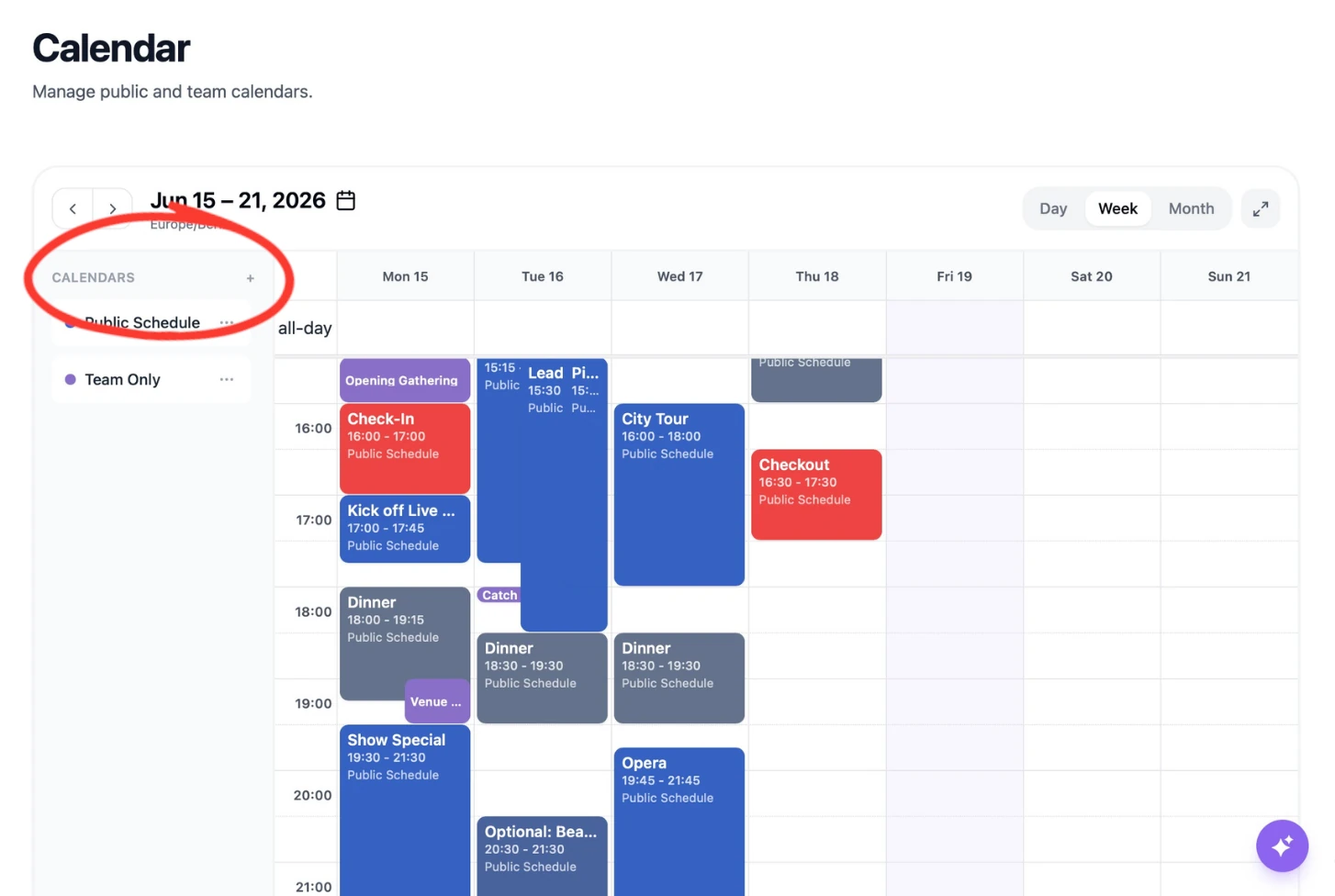
Public vs. internal
Calendars have a visibility scope, so you control who sees what:
- Public — visible to everyone, including attendees.
- Logged-in only — visible to signed-in users.
- Internal — for your team's planning, kept off the public schedule.
This lets you keep behind-the-scenes logistics separate from the agenda you publish. Simply create a new calendar with the plus button next to Calendars, to serve another scope.
Plugins
Plugins like the Slot Booking plugin, may also show calendar entries. This gives every attendee their own personal calendar without blowing it up with too many entries, not everyone needs to see.
As an admin you can toggle a calendar on/off by clicking on its name in the sidebar, to improve a cluttered screen.
Publishing to attendees
Your public schedule appears to attendees alongside your event, so they always see an up-to-date agenda. Update an entry and the change is reflected for them — no re-publishing step to remember.
💡 Tip: Use colors to distinguish tracks or rooms, and keep internal logistics on a non-public calendar so attendees only see what's relevant to them.
Was this helpful?