The event dashboard tour
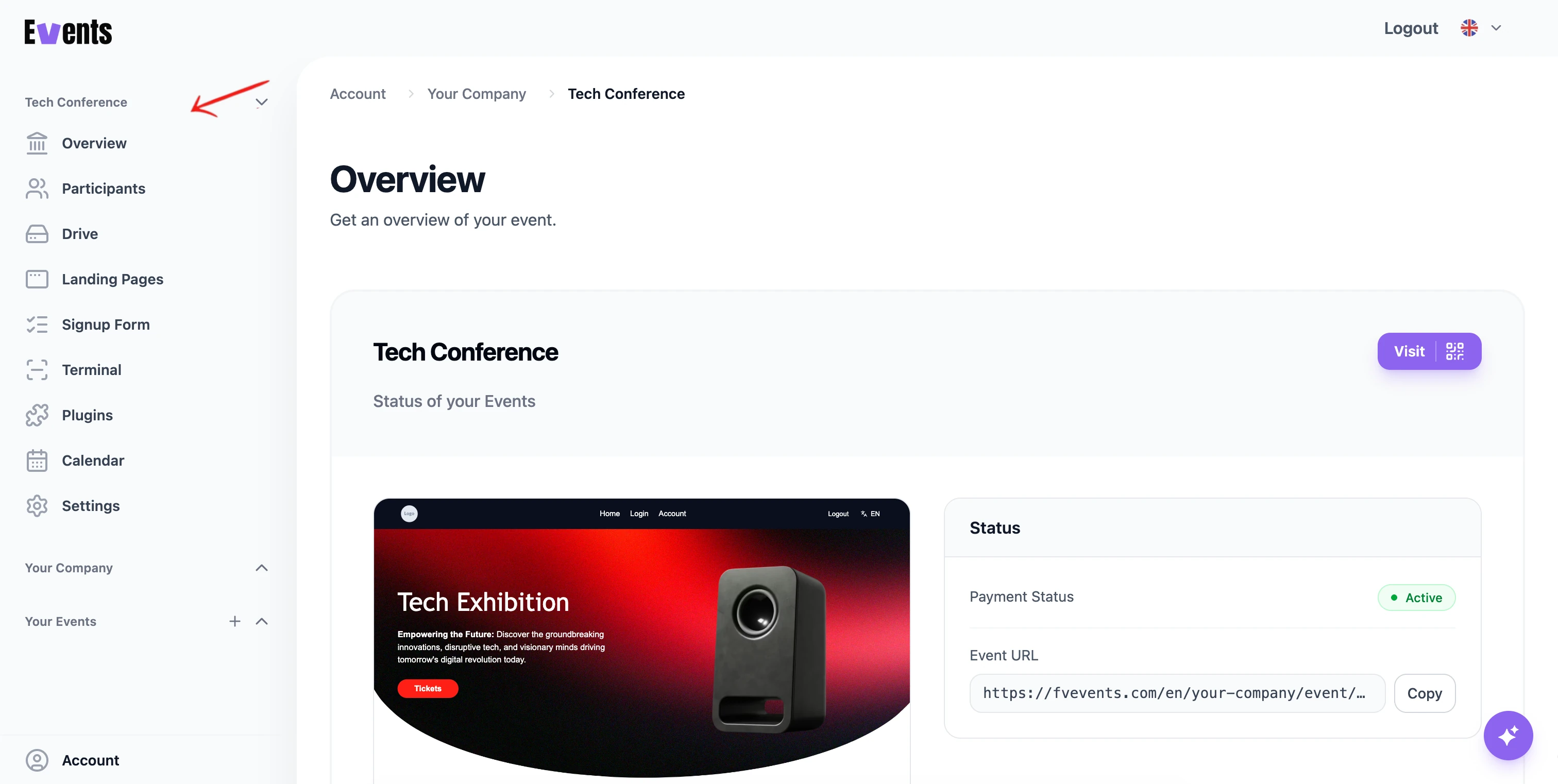
When you open an event, the sidebar gives you everything you need to run it. The links are grouped so you can find things faster — here's what each section does.
Overview & Insights
- Overview — the event's home. A quick snapshot of your key numbers plus shortcuts to the tools you use most.
- Insights — the full picture: registration and revenue analytics, plus web traffic for your event pages. See Analytics overview.
Guest Experience — what your attendees see and use.
- Landing Pages — design your public event pages in the Web Builder. See Web Builder overview.
- Sign-up form — build the registration form attendees fill in. See Form Builder overview.
- Calendar — plan and publish your event's schedule. See Calendar.
- Mobile App — your event's companion app for attendees (on supported plans).
Manage & Run — the tools you operate behind the scenes.
- Participants — everyone who has registered. View, search, filter, and check people in. See Managing your participant list.
- Terminal — set up on-site check-in for event day. See Terminal & Kiosk overview.
- Drive — store and share files for this event. See Drive.
- Plugins — enable optional features like seating, slot booking, or photo sharing. See Plugins overview.
Settings
- Settings — all of the event's details and options. See Event settings reference.
💡 Tip: You can ask the AI assistant to take you to any of these sections — or to make changes for you once you're there.
Was this helpful?